MCP Server Documentation
Connect your AI coding agent to Social media studio using the Model Context Protocol (MCP). This guide covers setup instructions for every major AI agent.

Prerequisites
- A Social media studio account with at least one connected social account. Sign up here.
- An API key generated from Settings > API Access in your dashboard.
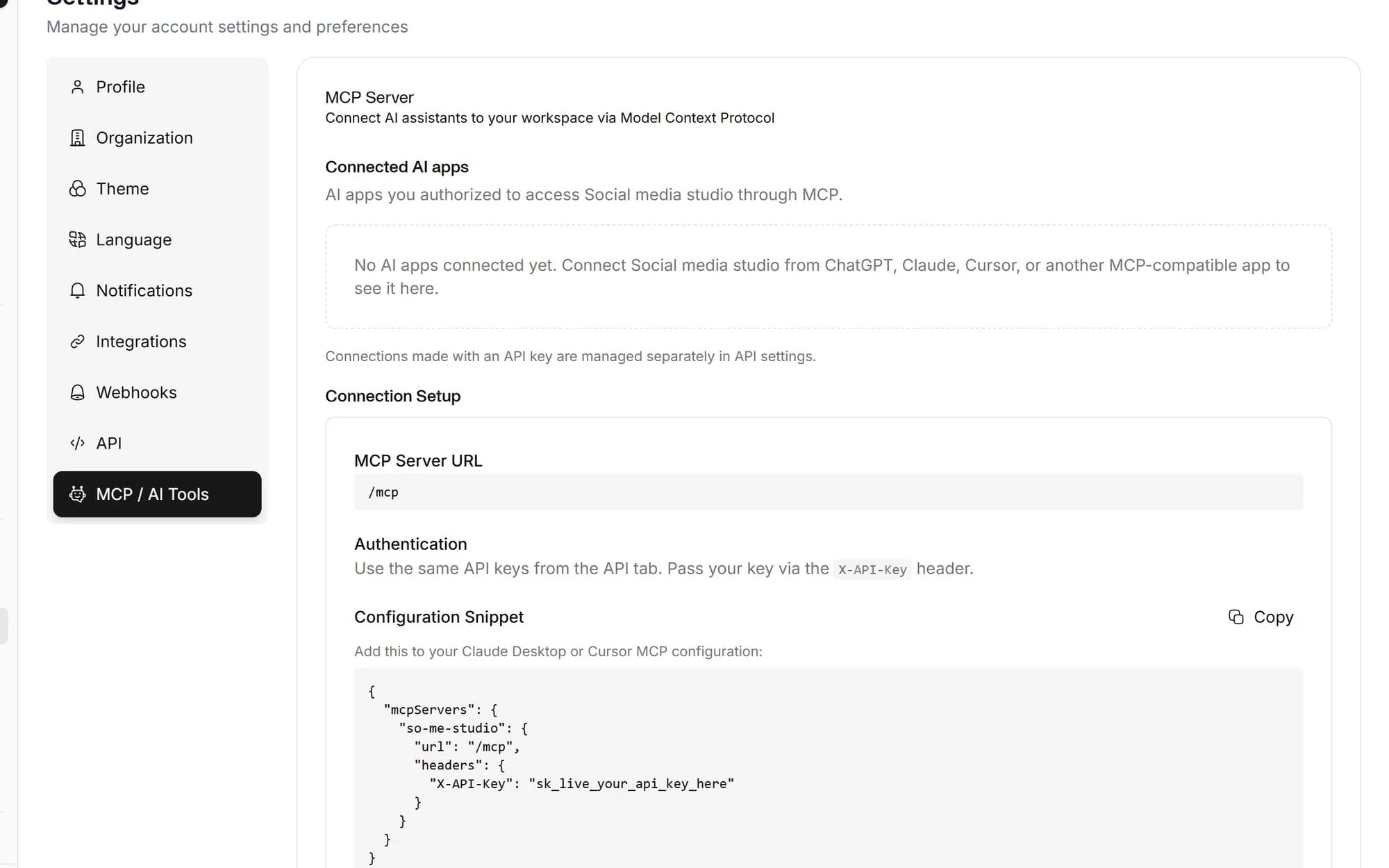
- MCP Endpoint:
https://api.so-me.studio/mcp - Authentication: Pass your API key via the
X-API-Keyheader. - Transport: Streamable HTTP (POST only, stateless mode).

Available Tools
Once connected, your AI agent can call 205 tools across more than 30 categories, here is a sample:
Posts & Scheduling
Create, schedule, retry, resubmit, bulk delete posts and view calendar
Post Comments
Add, update, delete, and list comments on posts for team collaboration
Drafts
Create, update, delete drafts and convert them to scheduled posts
Inbox & Saved Replies
Manage conversations, reply to messages, and create saved reply templates
AI Content & Video
Generate captions, images, UGC videos, hook suggestions, and auto-schedule
AI Video / UGC
Generate videos with AI avatars and sounds, browse avatars and music
Analytics
Workspace summary plus detailed Facebook, Instagram, LinkedIn, YouTube, X analytics
Biolinks
Manage biolink pages, buttons, reorder elements, and track analytics
Media Library
List, search, delete files and manage media folders
Teams
List members, invite new members, remove members, and update roles
Templates
Browse content templates by category and render them with custom values
Help & Support
Create support tickets, list tickets, and send messages
Settings & Usage
Get profile, organization details, billing info, and usage breakdown
Approvals
List pending approvals, approve or reject posts with comments
Setup Guides
Claude Code
Anthropic's agentic coding tool in your terminal
Config: CLI command or .mcp.json
- 1Open your terminal and run the following command:
- 2Claude Code will now have access to all Social media studio MCP tools.
- 3Verify by running /mcp in your Claude Code session to see "so-me-studio" listed.
claude mcp add --transport http so-me-studio \
  https://api.so-me.studio/mcp \
  --header "X-API-Key: YOUR_API_KEY"
Alternative: .mcp.json
{
  "mcpServers": {
    "so-me-studio": {
      "type": "http",
      "url": "https://api.so-me.studio/mcp",
      "headers": {
        "X-API-Key": "YOUR_API_KEY"
      }
    }
  }
}
Place this file in your project root for project-scoped access, or at ~/.claude/.mcp.json for global access.
Claude Desktop
Anthropic's desktop application for Claude
Config: claude_desktop_config.json
- 1Open Claude Desktop and go to Settings > Developer > Edit Config.
- 2Add the following to your claude_desktop_config.json:
- 3Save the file and restart Claude Desktop.
- 4Claude will now have access to Social media studio tools in your conversations.
{
  "mcpServers": {
    "so-me-studio": {
      "url": "https://api.so-me.studio/mcp",
      "headers": {
        "X-API-Key": "YOUR_API_KEY"
      }
    }
  }
}
Config file location, macOS: ~/Library/Application Support/Claude/claude_desktop_config.json | Windows: %APPDATA%\Claude\claude_desktop_config.json
Cursor
AI-first code editor built on VS Code
Config: .cursor/mcp.json
- 1Open Cursor and go to Settings > MCP, or create .cursor/mcp.json in your project root.
- 2Add the following configuration:
- 3Save and Cursor will automatically connect to the MCP server.
- 4Verify by checking the MCP panel, "so-me-studio" should show as connected.
{
  "mcpServers": {
    "so-me-studio": {
      "url": "https://api.so-me.studio/mcp",
      "headers": {
        "X-API-Key": "YOUR_API_KEY"
      }
    }
  }
}OpenAI Codex
OpenAI's coding agent for your terminal and IDE
Config: ~/.codex/config.toml
- 1Run the following CLI command to add the server:
- 2Codex will store the configuration in ~/.codex/config.toml.
- 3Verify by running /mcp in a Codex session to see "so-me-studio" listed.
codex mcp add --transport http so-me-studio \
  https://api.so-me.studio/mcp \
  -H "X-API-Key: YOUR_API_KEY"
Alternative: config.toml
[mcp_servers.so-me-studio]
url = "https://api.so-me.studio/mcp"

[mcp_servers.so-me-studio.env_http_headers]
X-API-Key = "SO_ME_API_KEY"
When using env_http_headers, set the SO_ME_API_KEY environment variable in your shell with your actual API key.
Windsurf
AI-powered IDE by Codeium with Cascade agent
Config: ~/.codeium/windsurf/mcp_config.json
- 1Open Windsurf and navigate to Cascade > MCP settings, or edit the config file directly.
- 2Add the following configuration:
- 3Save the file and restart Windsurf.
- 4Cascade will now have access to Social media studio tools.
{
  "mcpServers": {
    "so-me-studio": {
      "serverUrl": "https://api.so-me.studio/mcp",
      "headers": {
        "X-API-Key": "YOUR_API_KEY"
      }
    }
  }
}VS Code (GitHub Copilot)
GitHub Copilot agent mode with MCP support
Config: .vscode/mcp.json
- 1Create a .vscode/mcp.json file in your project root (or use the Copilot settings UI).
- 2Add the following configuration:
- 3VS Code will prompt you to start the MCP server when Copilot is in Agent mode.
- 4Verify by checking the MCP status in the Copilot chat panel, tools from "so-me-studio" should appear.
{
  "servers": {
    "so-me-studio": {
      "type": "http",
      "url": "https://api.so-me.studio/mcp",
      "headers": {
        "X-API-Key": "YOUR_API_KEY"
      }
    }
  }
}Gemini CLI
Google's AI agent for your terminal
Config: ~/.gemini/settings.json
- 1Run the following CLI command to add the server:
- 2Gemini CLI will store the configuration in your settings.json.
- 3Verify by running /mcp in a Gemini session to see "so-me-studio" listed.
gemini mcp add --transport http so-me-studio \
  https://api.so-me.studio/mcp \
  -H "X-API-Key: YOUR_API_KEY"
Alternative: settings.json
{
  "mcpServers": {
    "so-me-studio": {
      "httpUrl": "https://api.so-me.studio/mcp",
      "headers": {
        "X-API-Key": "YOUR_API_KEY"
      }
    }
  }
}
Place in ~/.gemini/settings.json for global access, or .gemini/settings.json in your project root for project-scoped access.
Supported Platforms
Once connected, your agent can post to all platforms you have linked in your Social media studio dashboard:
Troubleshooting
Authentication failed / 401 Unauthorized
Double-check your API key is correct and active. Make sure the header is exactly "X-API-Key" (case-sensitive). Generate a new key from Settings > API Access if needed.
SSE / GET requests return 405
Social media studio's MCP server runs in stateless mode using Streamable HTTP transport. Only POST requests are supported. Make sure your agent is configured with HTTP transport, not SSE.
Rate limit exceeded
MCP tool calls are rate-limited based on your subscription plan. Upgrade your plan or wait before retrying. Check your usage in Settings > MCP.
Credits exhausted
Each MCP tool call consumes credits. Check your remaining credits in Settings > MCP and upgrade your plan if needed.
Connection timeout
If your agent times out during connection, increase the timeout settings in your MCP configuration. A value of 30000ms (30 seconds) is recommended.
Schedule once.
Post everywhere.
Stop juggling tabs, draft, customize, and publish to 20 platforms from a single calendar.