Brand Asset Management Built Into Your Social Workflow
Upload, organise and reuse images, videos and brand assets across every social post. Nested folders, multi-source uploads, and built-in image and video editors, no separate DAM subscription required.
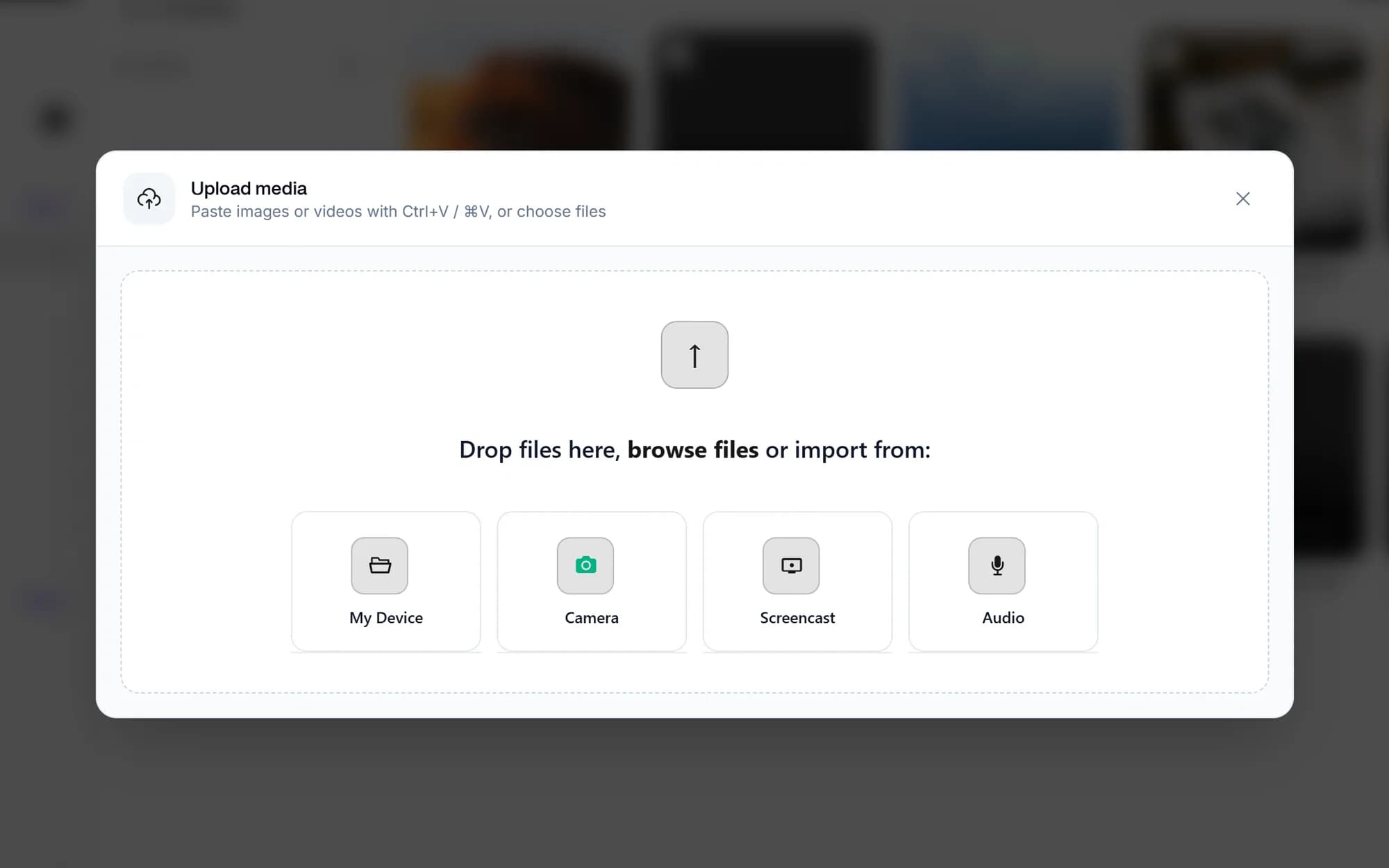
Upload your assets
Drag, drop, schedule
Drop images or videos into the library, then attach them to posts in one click from the composer.
Organise into nested folders
Sort by client, brand, or campaign with nested folders. Bulk move, bulk delete, and select-all keep large libraries tidy.
Pull from anywhere
Import from Dropbox, Google Drive, Unsplash, Canva, a URL, your webcam, or a screen capture.
Edit without leaving the app
Crop, retouch, annotate and stitch clips with built-in image and video editors, no round-trips to other tools.
Drag, drop, done
Drop images, videos, GIFs or files into the library and they upload straight to S3 via presigned URLs. Or pull assets from Dropbox, Google Drive, Unsplash, Canva, a URL, your webcam, or a screen/audio capture, and have them ready for the composer in seconds.
- Images, videos, GIFs and common file types
- Multi-source: Dropbox, Google Drive, Unsplash, Canva, URL, webcam, screen capture
- See the pricing table for current Lite, Standard, Advanced and Lifetime limits.
Nested folders and bulk actions
Group assets into nested folders by client, campaign or brand, and reshuffle them as work evolves. Select-all, bulk-move and bulk-delete keep big libraries manageable. The visual editor picks up your hub's brand colour automatically so on-brand visuals stay on-brand.
- Nested folders, rename and move
- Bulk move, bulk delete, select-all
- Hub brand colour applied in the visual editor

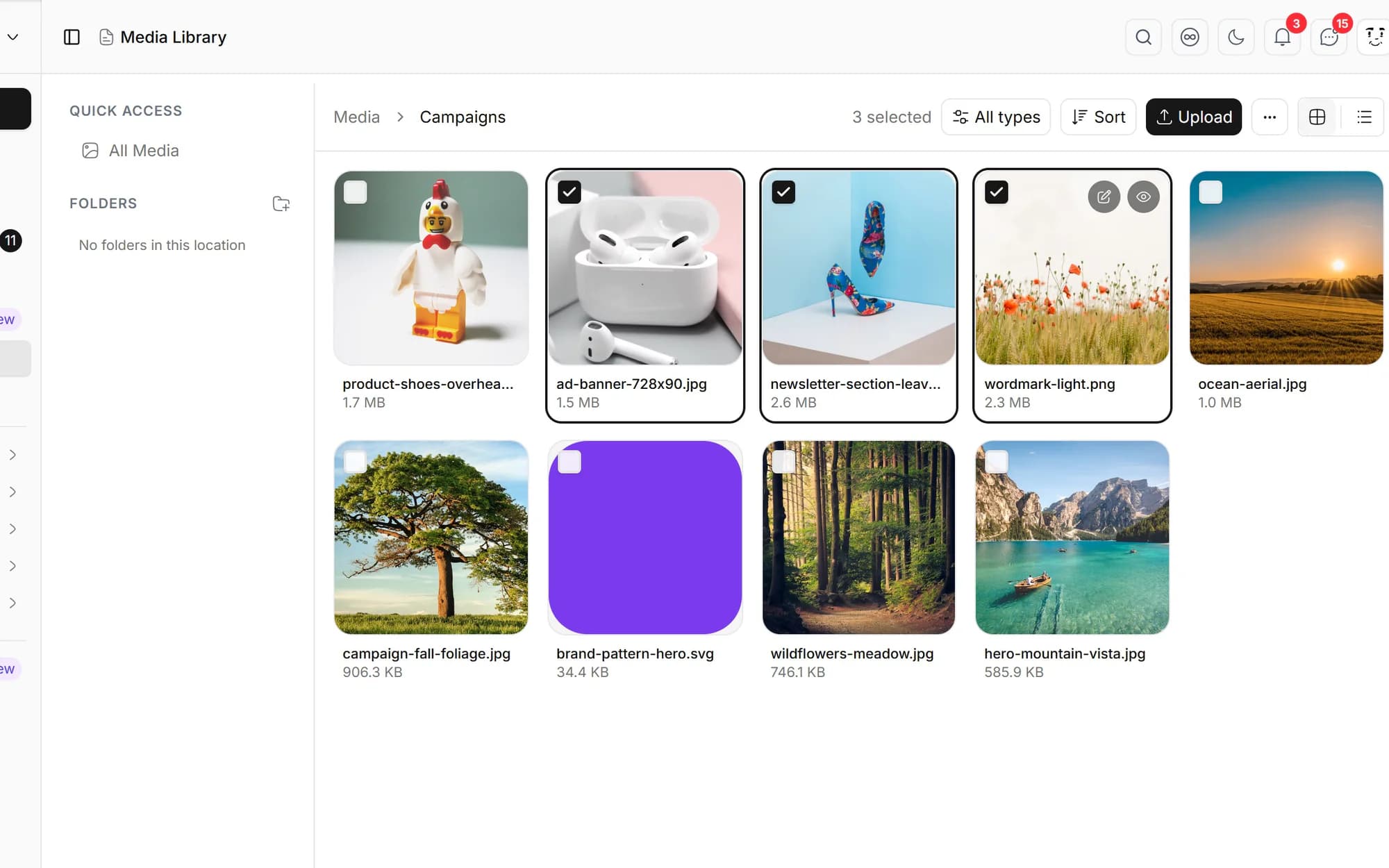
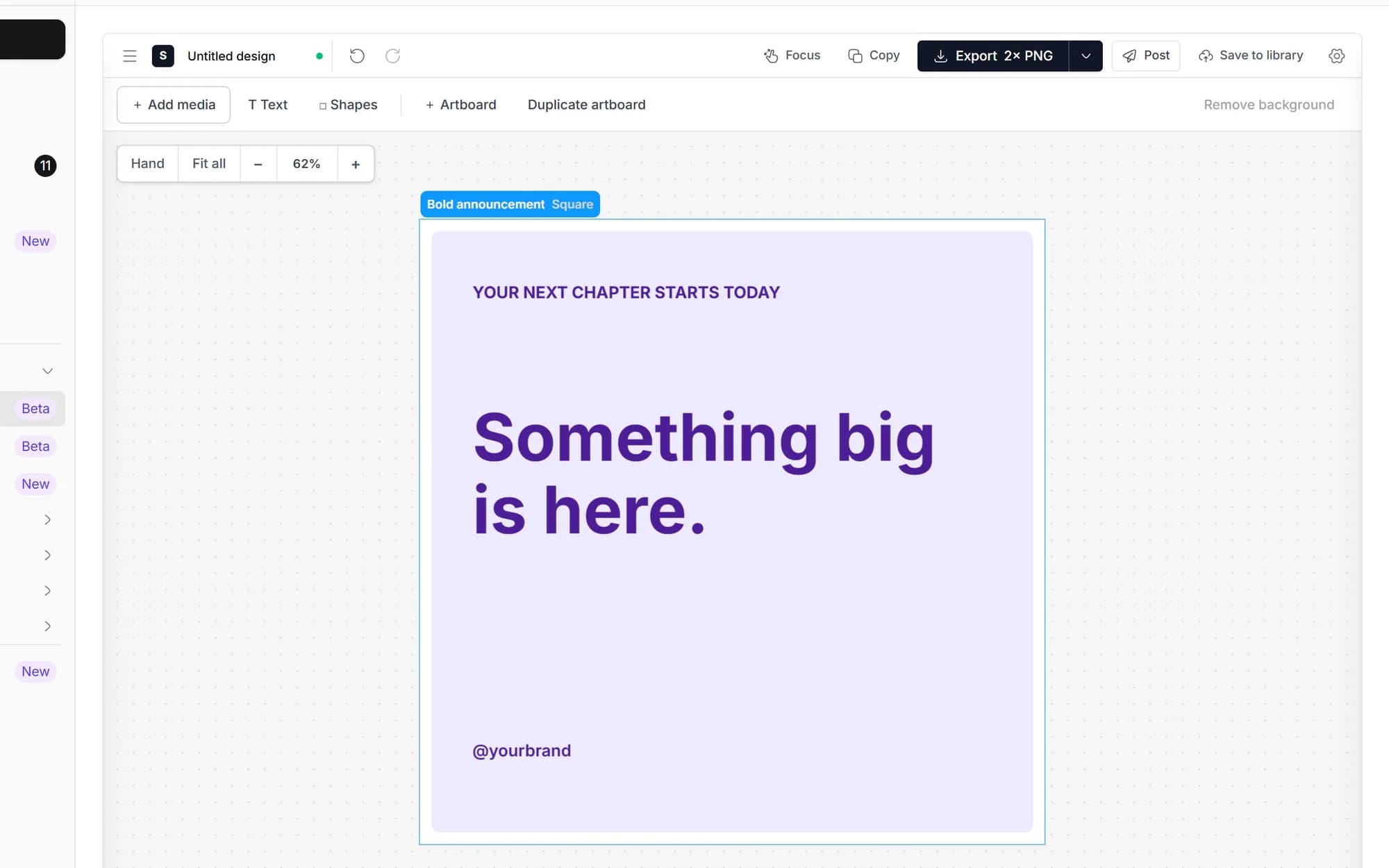
Image and video editors built in
Edit visuals without leaving Social media studio. The screenshot/visual editor gives you a layered canvas with animation; Pintura and TUI handle crop, retouch and annotate; and the media composer stitches and trims clips with FFmpeg, including face detection to keep subjects in frame.
- Screenshot/visual editor: layered canvas with animation
- Pintura and TUI image editors for crop, retouch and annotate
- Media/video composer: FFmpeg stitching, trimming and face detection
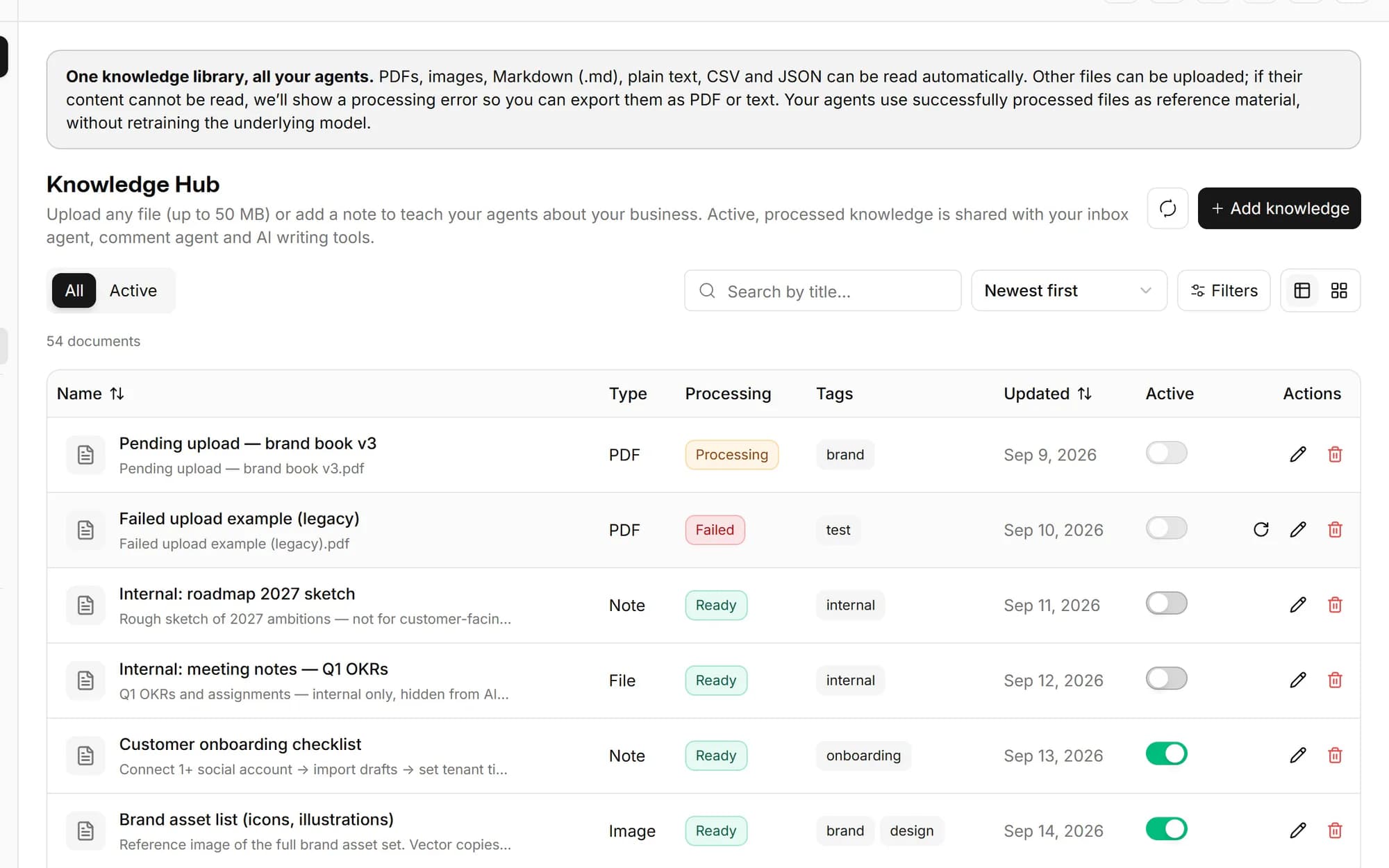
Knowledge documents that teach the AI your brand
Upload brand guidelines, product docs or reference material to the knowledge hub. Text is extracted from PDFs and images and used as retrieval-augmented (RAG) context, so AI-written captions stay grounded in how your brand actually talks.
- Ingest PDFs and images into the knowledge hub
- Text extracted and used as RAG brand context
- Grounds AI caption and content generation
Built for teams that keep losing the asset
Agencies
Give each client a nested folder structure inside their own isolated hub.
Brand teams
Keep visuals on-brand with the hub brand colour applied in the built-in editor.
Creators
Your shoots, B-roll, thumbnails and graphics, organised in folders and edited in-app.
Video makers
Stitch, trim and frame clips with the FFmpeg-powered composer before scheduling.
See the pricing table for current Lite, Standard, Advanced and Lifetime limits.
Images (JPG, PNG, WebP, GIF), videos (MP4, MOV, WebM) and other common file types. Each platform's publishing constraints (size, dimensions, length) are validated when you schedule the post.
Yes. Via Uppy and Companion you can pull files from Dropbox, Google Drive and Unsplash, import Canva designs, or add a file by URL, webcam or screen/audio capture, no manual download-then-reupload.
Yes. There's a screenshot/visual editor with a layered canvas and animation, Pintura and TUI image editors for crop, retouch and annotate, and a media/video composer that stitches and trims clips with FFmpeg, including face detection.
No. Each workspace (hub) has its own isolated media library, scoped to that hub, so client and brand assets stay separated. Folders, media, calendar and analytics are all per-hub.
Upload brand guidelines, product docs or reference files and Social media studio extracts the text and uses it as retrieval-augmented (RAG) brand context. AI caption and content generation then draws on that material so the output stays on-brand.
Schedule once.
Post everywhere.
Stop juggling tabs, draft, customize, and publish to 20 platforms from a single calendar.