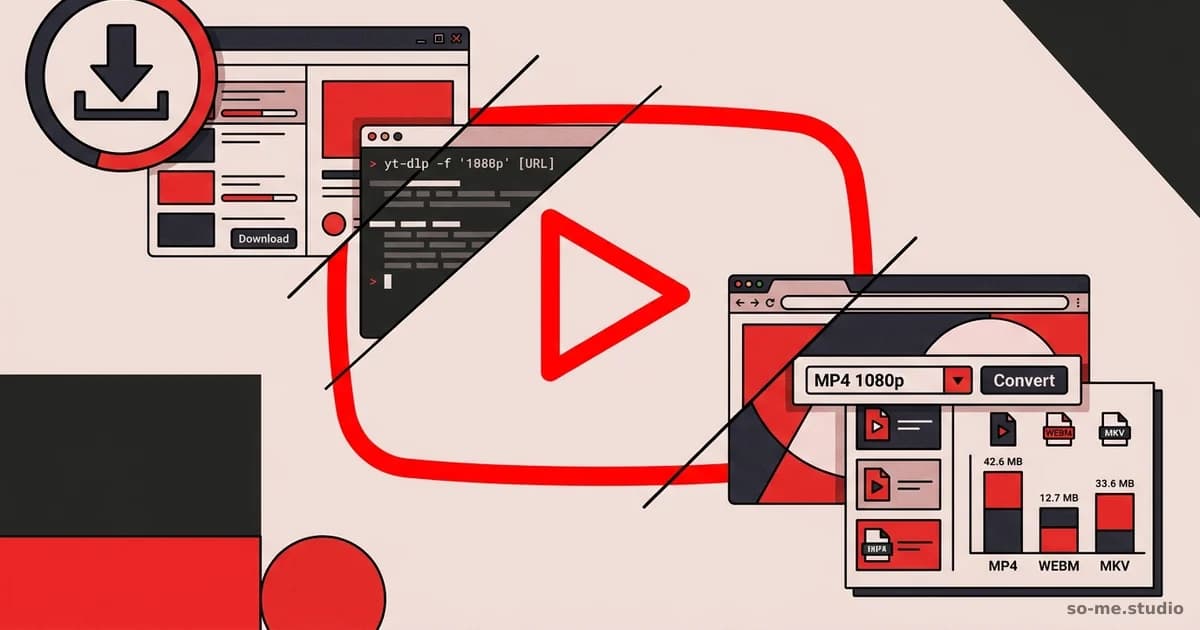
Ngl, saving YouTube videos isn't as straightforward as it should be. Whether you want to watch your favorite content offline or create a compilation for your project, knowing how to save YouTube videos is essential. Sound familiar? Many people juggle subscriptions and streaming services, and sometimes, you just want to hit "play" without needing Wi-Fi. Let’s dive into why this matters and how you can make it work for you.
You're not alone if you've ever found yourself stuck with buffering videos or slow internet. The idea of saving a YouTube video to your device lets you escape those frustrating moments. Plus, it's super handy for students or content creators wanting to analyze different approaches without going back online. So, let's break down everything you need to know about saving YouTube videos!
What You Will Cover

Legal Aspects of Saving Videos
Before you jump into saving videos, it's essential to understand the legalities. YouTube's terms of service state that you're not supposed to download content unless it provides a download button or link. This can feel a bit limiting, but here's the deal: if you're planning to use the video for personal use or educational purposes, you're usually in the clear.

That said, if you're looking to save content for commercial use, remember that copyright laws can get tricky. Always ask for permission if you're unsure, or stick to videos with a Creative Commons license. Ignoring these rules isn't just a bad idea; it can lead to some serious legal headaches down the road.
Why This Matters
Understanding the legal side of things keeps you safe. It ensures you won’t accidentally infringe on someone's rights, which could lead to channel strikes or worse.
Practical Applications
- Always check if there's a download option directly on YouTube.
- Look for videos under Creative Commons for easier sharing.
- If in doubt, reach out to the content creator for permission.
Official Methods to Save YouTube Videos
YouTube has some built-in features that make saving videos relatively easy, especially if you're a premium subscriber. Here’s what you need to know:

-
YouTube Premium: This is the easiest way to save videos. If you’re a YouTube Premium member, you can download videos directly to your mobile device! Just look for the download button below the video—no extra steps needed.
-
YouTube App: For non-premium members, the YouTube app allows some users to save videos for offline viewing, but this feature varies by region and the type of content. So, it’s worth checking out!
-
Using Desktop: There’s currently no official way to save videos directly to your computer from YouTube's website, but you can bookmark videos for easy access later.
What’s great about using the official methods is you're staying within the law and effortlessly accessing content whenever you want.
Why This Matters
Official methods come with the peace of mind of knowing you're following YouTube's terms. Plus, you get the bonus of additional features like ad-free watching and background play with YouTube Premium.
Practical Applications
- If you have a subscription, activate it to make the most out of these features.
- Always check your region’s availability for offline downloads within the app.
- Use bookmarks to curate your favorite videos for easy access when you’re on your computer.
Using Third-Party Tools
If the official routes don’t cut it for you, plenty of third-party tools can help you save YouTube videos. There are both software applications and online services designed for this, but you’ve got to be cautious:
-
Web-based Downloaders: These sites let you copy and paste the link of the video you want to save. After some processing, they allow you to download the video file. Websites like Y2Mate or SaveFrom.net are popular, but always check reviews to ensure they're safe!
-
Desktop Applications: Programs like 4K Video Downloader or YTD Video Downloader offer more flexibility. You can download videos, playlists, and even entire channels if that's your jam. These tools usually have straightforward interfaces, making the process easier.
-
Browser Extensions: If you're into saving content frequently, you might enjoy using browser extensions. Tools like Video DownloadHelper or YouTube Video Downloader can streamline the process right as you watch the content on your browser.
While these methods can be super helpful, they come with their own risks. Many third-party tools can carry malware or compromise your privacy. Always research before downloading any software or using a service.
Why This Matters
Finding the right third-party tool can make your experience smoother and give you more options to save the content you love. Just make sure you’re choosing reputable sources to avoid any headaches.
Practical Applications
- Research and find user reviews before downloading third-party applications.
- Keep your antivirus software updated to protect against potential threats.
- Experiment with a few options to see which one suits your needs best.
Ready to take the plunge into saving YouTube videos? You’ve got options, but be sure to stick around for the next part where we’ll dive deeper into practical tips and tricks for making the most out of your saved videos!
2. YouTube Premium
YouTube Premium is a subscription service that allows you to save YouTube videos for offline viewing—without any ads. If you're a regular YouTube watcher (guilty as charged), this can be super convenient. You get to download videos directly from the app on your mobile device and watch them whenever, without an internet connection.
Why This Matters
With YouTube Premium, you're not just saving videos; you're accessing exclusive content and listening to music ad-free. Plus, you can switch between videos and music without interruptions. It’s like having your cake and eating it too!
Practical Applications
- Offline Playlists: Download your favorite videos and create playlists to enjoy during travel or offline moments.
- Background Play: Listen to music or podcasts from videos while multitasking or using other apps on your device.
- Access to Originals: Enjoy exclusive shows and movies produced by YouTube for subscribers.
3. Browser Extensions
If you often use a computer, browser extensions can be a fantastic way to save YouTube videos. There are tons of options available that let you grab videos right from your browser without needing additional software. Sounds great, right?
Why This Matters
Using browser extensions saves you time and effort. You don't have to switch apps or tabs to save videos, making the process as simple as a click. Plus, most of these extensions allow you to choose the video quality before downloading, so you can tailor it to your storage capacity.
Practical Applications
- Install Quality Extensions: Look for highly-rated extensions like Video DownloadHelper or YouTube Video Downloader.
- Check Compatibility: Make sure your browser supports the extension you choose; most work on Chrome, Firefox, and Edge.
- Regular Updates: Keep your extensions updated to avoid compatibility issues and ensure you have the latest features.
4. Mobile Apps
Many apps on iOS and Android let you save YouTube videos directly to your device. These apps can be handy, especially if you're on the go and want to have access to your favorite content anytime.
Why This Matters
Mobile apps allow you to save videos in various formats and resolutions. This flexibility can be useful for conserving space on your phone or for optimizing video playback in different scenarios—especially if you’re low on data.
Practical Applications
- Choose Credible Apps: Look for apps with positive reviews and a good reputation on app stores; examples include TubeMate (Android) or Documents by Readdle (iOS).
- Experiment with Formats: Some apps let you download videos as MP3s or in different resolutions. Try downloading a few in different formats to see what works best for you.
- Limitations: Check for any caps or restrictions on video lengths download apps might impose.
5. Good Old Screen Recording
If you’re okay with a little workaround, screen recording is a reliable way to save ANY video. Almost every device comes with built-in screen recording features. So, while it's not the cleanest method, it does get the job done.
Why This Matters
Sometimes you want a quick solution and don’t want to rely on external tools or services. Screen recording is available right within your phone or computer—a handy tool that can be used anytime.
Practical Applications
- Find the Right Tool: Use the built-in screen recording feature in your operating system (like iOS, Android, or Windows).
- Record in High Quality: Check your settings to record in the highest quality possible; you want the best experience!
- Trim Your Clips: Use editing apps or software to cut out unwanted portions from your recordings.
Common Challenges and Solutions
While saving videos from YouTube might seem straightforward, there are obstacles that can trip you up along the way. Let's cover a couple:
Challenge: Quality Loss
Sometimes, the downloaded videos don't maintain the quality you'd hope for. Low-res downloads can be a bummer when you were looking forward to high-definition content.
Solution: Choose the Right Quality Settings
When using apps or extensions, always look for options allowing you to download in the highest quality available. Higher-quality formats mean larger file sizes, so consider your storage options too.
Challenge: Legal Issues
Many people are unsure whether downloading content violates YouTube’s terms of service. It’s crucial to stay on the right side of this legal grey area.
Solution: Know the Rules
YouTube does allow downloading via Premium or when the creator has granted permission (like their own channels promoting downloads). Always respect copyright laws and the rights of creators.
Challenge: Format Complications
Sometimes you want to save a video but don’t know what format works for your device—this can be frustrating.
Solution: Pick Universal Formats
MP4 is generally the safest bet for saving videos since it's compatible with most devices and players. If you're not sure, just check the default format options of the app you’re using.
Ready to level up your video-saving strategy? With these tips in your back pocket, you’re all set to save YouTube videos like a pro! Whether you’re using premium services, third-party tools, or even recording your screen, there’s a way for everyone.
There’s plenty more to explore in our next section, so don’t miss out!
Case Studies and Examples
Let’s dive into a couple of real-life scenarios to see how others have successfully saved YouTube videos and made the most out of their content. These examples will help you visualize how the tips we’ve discussed can be put into action.
Case Study: A Fitness Coach
Summary: Meet Sarah, a fitness coach who uses YouTube for her workout videos. She often found herself short on time when trying to access her favorite tutorials. After learning how to save YouTube videos, Sarah streamlined her content curation process. She started by using a user-friendly app to download videos she frequently referred to during her sessions with clients.
By saving the videos in MP4 format, Sarah could access them offline during her workouts without worrying about data usage or buffering.
Key Takeaways: - Offline Access: Saving videos lets you access content anytime, anywhere. - Efficiency: No more scrambling to find the video while in the middle of a workout. - Enhanced Engagement: With key tutorials on hand, Sarah could deliver better quality sessions, impressing her clients.
Case Study: DIY Enthusiast
Summary: Next up is John, a DIY enthusiast who loves creating home improvement projects based on inspiration he finds on YouTube. John faced the challenge of video removal, as many channels frequently updated or deleted older content. When he began saving YouTube videos, he collected a treasure trove of tutorials for everything from woodworking to plumbing.
He used a combination of a browser extension and his screen recorder for tougher videos. The MP4 format made it easy for him to categorize and replay these videos whenever he wanted.
Key Takeaways: - Content Preservation: Saving videos lets you keep valuable information without relying on YouTube. - Diverse Tools: Using both extensions and screen recording offers versatility. - Project Planning: John can now plan his projects better with all tutorials saved and organized.
FAQ about Saving YouTube Videos
How do I save YouTube videos legally?
To save YouTube videos legally, you can use YouTube Premium for offline viewing or get permission from the creator to download their work. Always respect copyrights.
What formats can I save the videos in?
Most tools allow you to save videos in several formats. MP4 is the most universal choice, while others may offer formats like AVI, MKV, or MOV. It’s best to pick one that fits your playback needs.
Can I save YouTube videos on my phone?
Absolutely! Many apps and tools are specifically designed for mobile devices. Just make sure they comply with copyright laws.
Will saved videos be of good quality?
If you choose a reliable tool, yes! Most video downloaders offer high-quality options. Always select a high-definition version if available for the best experience.
Are there any risks in using third-party tools?
Some risks include downloading malware or losing access to the service if it violates YouTube's policies. Stick to reputable, well-reviewed tools to minimize these risks.
Final Thoughts
Saving YouTube videos can be a total lifesaver—no more buffering, lost tutorials, or hit-or-miss connections. When you're equipped with the right tools and knowledge, you can easily keep all your favorite content at your fingertips.
So whether you’re a creator seeking to keep your inspiration organized or a passionate DIYer wanting to preserve how-to videos, learning how to save YouTube videos opens up a world of convenience. Just remember to abide by copyright regulations and use your saved videos ethically.
Are you ready to start your video-saving journey? If you want to know more about video editing, optimization, or other nifty tips, check out our blog for more brilliant resources. And if you’re looking for a way to streamline your social media, why not try so-me.studio free? Start saving time and grow your audience today!