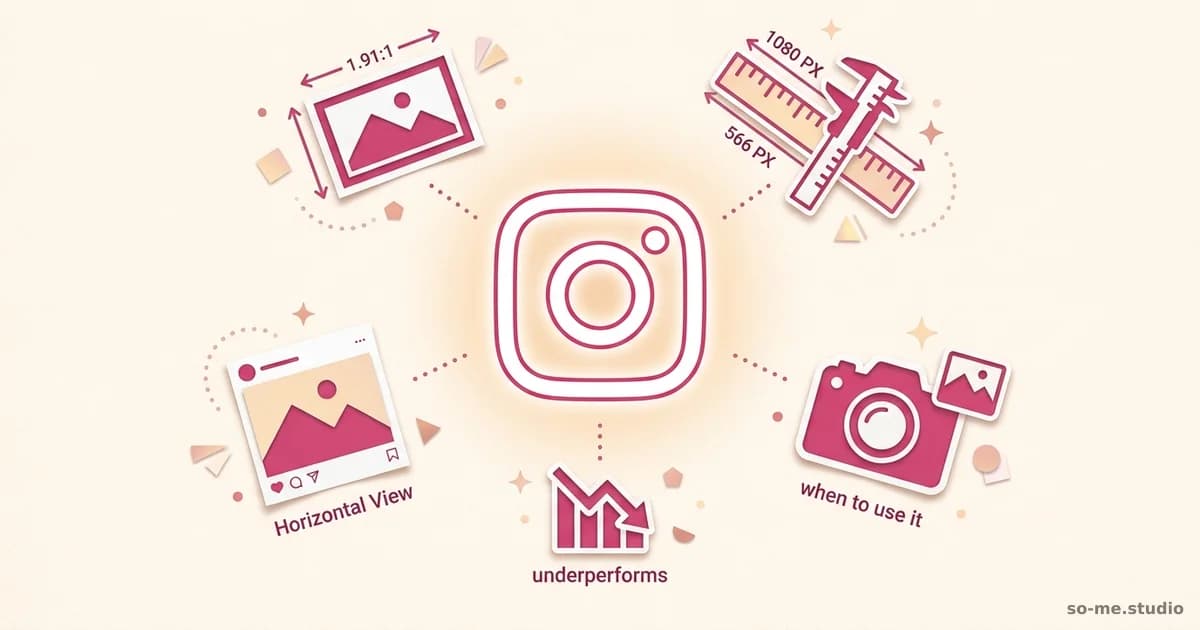
The correct Instagram horizontal (landscape) dimensions are 1080 × 566 pixels at a 1.91:1 aspect ratio. That's the only landscape size Instagram doesn't crop into a square. Upload at exactly these dimensions and your image displays full-frame in feed + on profile grid.
Here's the dimensions matrix for every Instagram surface, the safe zones to design within, and the export settings that prevent compression issues.
Instagram horizontal image specs
- Dimensions: 1080 × 566 pixels
- Aspect ratio: 1.91:1 (horizontal)
- Minimum width: 320 px (anything less = upscale + quality loss)
- File format: JPG, PNG, WebP
- Maximum file size: 30 MB
- Recommended export: sRGB colour, 72-150 DPI
All Instagram image + video dimensions
| Surface | Dimensions | Aspect ratio |
|---|---|---|
| Feed — square | 1080 × 1080 | 1:1 |
| Feed — horizontal (landscape) | 1080 × 566 | 1.91:1 |
| Feed — vertical (portrait) | 1080 × 1350 | 4:5 |
| Story | 1080 × 1920 | 9:16 |
| Reel | 1080 × 1920 | 9:16 |
| Profile picture | 320 × 320 (displays as circle) | 1:1 |
| Carousel | 1080 × 1080, 1080 × 1350, or 1080 × 566 | 1:1, 4:5, or 1.91:1 |
Why horizontal images underperform on Instagram
Instagram's feed is portrait-first. Horizontal images take ~30% less screen space than vertical 4:5 images. Less screen = less attention = lower engagement.
- Vertical (4:5) — 1080 × 1350 — takes 1350 px of screen height
- Square (1:1) — 1080 × 1080 — takes 1080 px of screen height
- Horizontal (1.91:1) — 1080 × 566 — takes only 566 px of screen height
Default to vertical 4:5 for most posts. Use horizontal only when the image inherently fits horizontal (panoramic landscape, group photo, sports action).
Safe zone for horizontal Instagram
Critical content should sit in the centre 80% of the frame:
- Profile-grid thumbnail crops horizontal images to centre square
- Stories share button squeezes horizontal posts into shrunk preview
- Some shared-link previews crop further
Rule: anything important (text, faces, product) stays in the centre 80%. Decorative imagery extends to edges.
Exporting horizontal images for Instagram
- Photoshop: Image → Image Size → 1080 × 566 → File → Export → Save for Web → JPG, 80% quality, sRGB.
- Lightroom: Export → 1080 px on long edge → 100% quality → sRGB.
- Canva: Search "Instagram landscape post" — pre-set template.
- Figma: Frame at 1080 × 566 → Export → JPG.
- Mobile (Lightroom Mobile, VSCO): Crop to 1.91:1 manually, export at maximum quality.
When horizontal makes sense
- Panoramic landscape photos. Mountain ranges, beaches, skylines.
- Wide group shots. Team photos, event coverage.
- Sports action. Football, cricket, racing — naturally horizontal compositions.
- Designed graphics with horizontal layout. Banners, headers — though usually better as Stories.
- Cinema stills. Movie + TV stills are naturally horizontal.
For everything else, vertical (4:5) gives 2.4x the screen space.
Trick — use horizontal inside a carousel
Carousels accept mixed aspect ratios across slides. Use horizontal images as middle slides + vertical images as opening + closing slides. The first slide sets the visual real estate; subsequent slides display at whatever ratio you uploaded.
This way, you can include horizontal images (panoramas, group shots) without sacrificing the screen-space advantage of a vertical first slide.
Common horizontal Instagram mistakes
- Uploading at wrong aspect ratio (Instagram crops to 1.91:1, ruining composition)
- Image quality less than 1080 px wide (Instagram upscales, image looks pixelated)
- Heavy text in horizontal — small print becomes unreadable
- Critical info too close to edges (cropped by previews + carousel thumbnails)
- Using horizontal as your default — defaults to vertical for screen-space advantage
- Forgetting profile grid will crop horizontal to square thumbnail
Quality tips for horizontal Instagram
- Export at exactly 1080 × 566. Larger doesn't help, smaller compresses badly.
- sRGB colour space. Adobe RGB or other spaces shift colours when Instagram converts.
- JPG quality 80%. Lower = visible compression. Higher = no perceptible improvement.
- Don't sharpen heavily. Instagram applies its own compression — over-sharpening leaves artefacts.
- Watch the file size cap. 30 MB max, but most exports should be 1-5 MB for the dimensions.
FAQ
What are the correct Instagram horizontal dimensions?
1080 × 566 pixels, 1.91:1 aspect ratio. Maximum 30 MB. JPG, PNG, or WebP.
Is horizontal better than vertical on Instagram?
No. Vertical (4:5) takes 2.4x the screen space and gets higher engagement. Use horizontal only when the image inherently fits horizontal.
Should I use 1:1 square images?
Square is the safe-default ratio. Less screen space than vertical 4:5 but works in all surfaces (feed, grid, story share).
Why does Instagram crop my horizontal image?
You uploaded at wrong aspect ratio. Anything other than 1.91:1 gets cropped. Resize to exactly 1080 × 566 before upload.
Can I post horizontal images to Stories?
Stories are 9:16 vertical. Horizontal images get black bars or get cropped. Crop to vertical before posting to Stories.
Next steps
Audit your last 9 Instagram posts. Switch defaults to vertical 4:5 (1080 × 1350) unless the image inherently fits horizontal. Track engagement over the next 30 days. For more on Instagram visuals, see Instagram post mockup techniques, how to use Instagram, building a strong feed, and best times to post Instagram.